Customizing the Bash Prompt (PS1)
Recolor the Bash prompt in ~/.bashrc using 256-color escape codes: the existing color_prompt block every Debian/Ubuntu install already has, the \[ \] wrapping rule, reusable color variables, and a few ready-to-use prompt variants (exit-status-aware, git branch, two-line, minimalist).
Goal: turn the default two-color Bash prompt into a fully recolored one - like alex@core ~ $ with each segment in its own 256-color shade - by editing the PS1 variable that’s already sitting, mostly unused, inside every default Debian/Ubuntu ~/.bashrc.
Why this is safe to experiment with: PS1 only controls what’s printed before each command line - it has no effect on how commands actually run. The worst that can happen from a bad edit is an ugly or broken-looking prompt, never a broken system. Section 3 below shows how to test changes live in the current shell before ever touching the file, so even that small risk is avoidable.
1. Where this lives in ~/.bashrc
Open ~/.bashrc and search for color_prompt - practically every Debian/Ubuntu install ships a block that looks like this, already present and mostly commented out:
if [ "$color_prompt" = yes ]; then
    PS1='${debian_chroot:+($debian_chroot)}\[\033[01;32m\]\u@\h\[\033[00m\]:\[\033[01;34m\]\w\[\033[00m\]\$ '
else
    PS1='${debian_chroot:+($debian_chroot)}\u@\h:\w\$ '
fi
unset color_prompt force_color_prompt
color_prompt itself is set a few lines further up, based on whether the terminal claims 256-color support (tput colors check) - you don’t need to touch that part. The if branch is the one that applies when color is available; that’s the PS1= line to replace. The else branch is the plain-text fallback for terminals that can’t do color at all - leave it alone as a safety net.
${debian_chroot:+($debian_chroot)}at the start of each line is unrelated to color - it just prints(chroot-name)if you’re inside adebian_chroot-flagged chroot, and nothing otherwise. Harmless to keep, safe to delete if you’ve never used a chroot.
2. Anatomy of a PS1 color escape sequence
Every colored segment follows the same shape:
\[\e[38;5;124m\]\u\[\e[0m\]
 ^^           ^  ^  ^^^^^^
 |            |  |  reset back to default color
 |            |  the actual content (here: \u = username)
 |            256-color palette index (0-255)
 start-of-color-code, non-printing-safe wrapper
\[        tells Bash/readline "what follows until \] is invisible" - doesn't move the cursor
\e[       starts the escape sequence (ESC + '[') - \033[ and \e[ are the same thing, octal vs. shorthand
38;5;N    SGR code: set foreground color to palette index N - use 48;5;N for background instead
m         ends the SGR code
\]        closes the invisible-wrapper opened by \[
\e[0m     resets color back to the terminal default - always add one at the end of PS1
Always keep
\[and\]in matching pairs around every escape code, with nothing else in between. They exist purely so Bash can tell “this is an invisible color code, don’t count it toward the visible line length.” Leave one unmatched and long commands or reverse history search (Ctrl+R) can start wrapping and redrawing in the wrong place - a classic, confusing prompt bug that has nothing to do with the colors themselves.
Useful PS1 content codes, all usable inside or outside color wrappers:
| Code | Meaning |
|---|---|
\u | current username |
\h | hostname, up to the first . |
\H | full hostname |
\w | current working directory, full path (~ shown for home) |
\W | just the current directory’s basename |
\$ | $ for a normal user, # for root |
\t | current time, 24h HH:MM:SS |
\n | newline (see the two-line prompt example below) |
Finding a color number: the 256-color palette breaks down as 0-15 (the 16 basic ANSI colors, shade varies by terminal theme), 16-231 (a 6x6x6 color cube), and 232-255 (a 24-step grayscale ramp). Rather than guessing, print the whole palette with its index numbers:
for i in {0..255}; do printf "\e[38;5;${i}m%3d\e[0m " "$i"; (( (i+1) % 16 == 0 )) && echo; done
Run that once, note which numbers you like, and use those indexes directly - no need to memorize the cube math.
3. Test live before editing the file
A typo in ~/.bashrc only breaks new shells, not the one you’re sitting in - but it’s still faster to catch mistakes before they’re saved. Try any PS1 value directly in your current shell first:
PS1='\[\e[38;5;208m\]\u\[\e[0m\]@\h \$ ' # try it - takes effect immediately, this shell only
If it looks wrong, just run another PS1='...' line to overwrite it - nothing is permanent until you paste the final version into ~/.bashrc and either run source ~/.bashrc or open a new terminal. Keep a backup either way:
cp ~/.bashrc ~/.bashrc.bak # restore with: cp ~/.bashrc.bak ~/.bashrc
4. Named color variables, instead of raw codes everywhere
Once you’ve picked a palette, define each color once as a variable and reuse the names - much easier to read and to re-theme later than hunting for raw numbers scattered through one long PS1 string:
# Define color variables for readability
GREEN='\[\e[38;5;64m\]'
BLUE='\[\e[38;5;24m\]'
YELLOW='\[\e[38;5;136m\]'
RED='\[\e[38;5;124m\]'
LILLA='\[\e[38;5;99m\]'
LIGHT_BLUE='\[\e[38;5;111m\]'
LIGHT_YELLOW='\[\e[38;5;155m\]'
TILDA_PINK='\[\e[38;5;171m\]'
RESET='\[\e[0m\]'
64  - olive green        24  - dark blue       136 - dark gold/mustard
124 - brick red          99  - purple/lilla    111 - light sky blue
155 - light yellow/lime  171 - pink/magenta
Double-check every variable has both
\[and\]- it’s easy to drop one bracket when typing several of these by hand, and the mistake won’t show up until that specific variable gets used somewhere and the cursor-position bug from section 2 shows up.
With these defined, build PS1 out of variable names instead of raw escape codes:
PS1="${RED}[${YELLOW}\u${GREEN}@${BLUE}\h${RED}${TILDA_PINK} \w${RED}]${RESET}\$ "
5. A fully recolored user@host prompt
This is the version actually running in alex@core ~ $ from the screenshot - each visible piece gets its own inline color instead of named variables, which works exactly the same way, just less reusable:
PS1="\[\e[38;5;124m\]\[\e[38;5;220m\]\u\[\e[38;5;143m\]@\[\e[38;5;111m\]\h \[\e[38;5;171m\]\w \[\e[0m\]\$ "
220 (gold)        -> \u, the username
143 (khaki)       -> the literal @
111 (light blue)  -> \h, the hostname
171 (pink)        -> \w, the working directory
\e[0m             -> reset, so the \$ prompt character and anything typed after it stays the terminal's default color
Swap in \W instead of \w if you’d rather see just the current folder name (~/Projects/site becomes site) instead of the full path - much shorter once you’re a few directories deep.

6. A few more prompt ideas
Exit-status-aware: red on failure, green on success
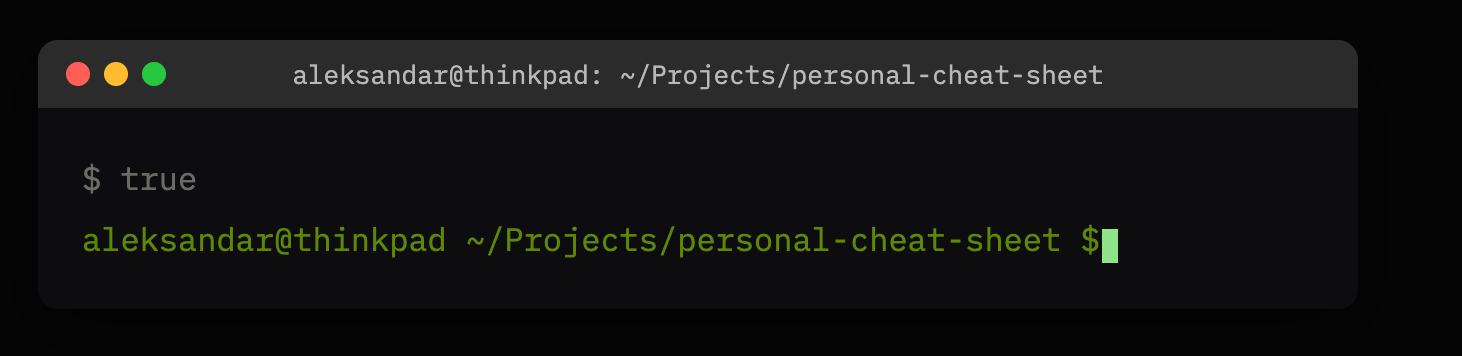
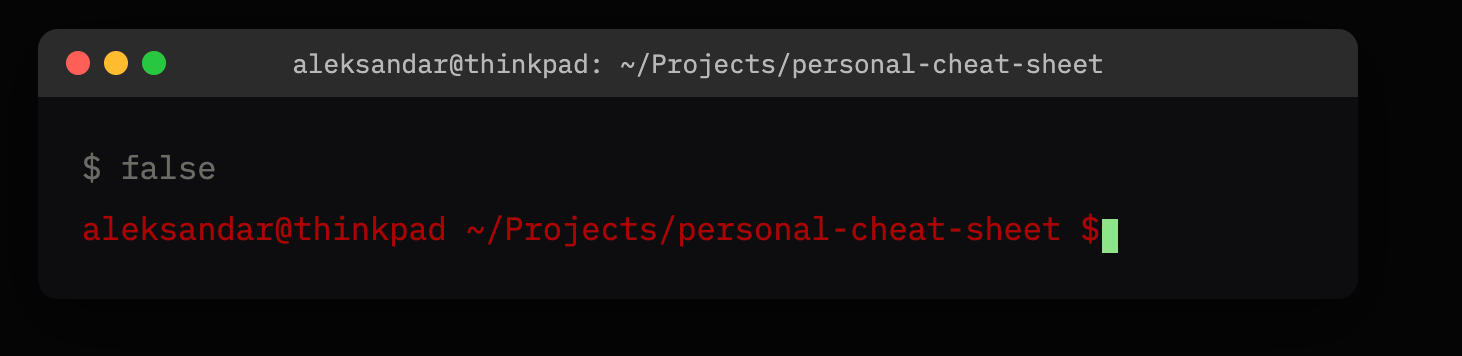
The single most useful prompt upgrade beyond plain color - instantly shows whether the last command succeeded, without having to run echo $? after every command:
PS1='$(if [ $? -eq 0 ]; then echo "\[\e[38;5;64m\]"; else echo "\[\e[38;5;124m\]"; fi)\u@\h \w \$\[\e[0m\] '
$?has to be read first, before anything else inPS1runs - it holds the exit code of whatever command you just ran, and gets overwritten the instant another command executes. This is the reason the whole color choice is wrapped in a$(...)at the very start of the string, rather than computed separately.
Git branch in the prompt
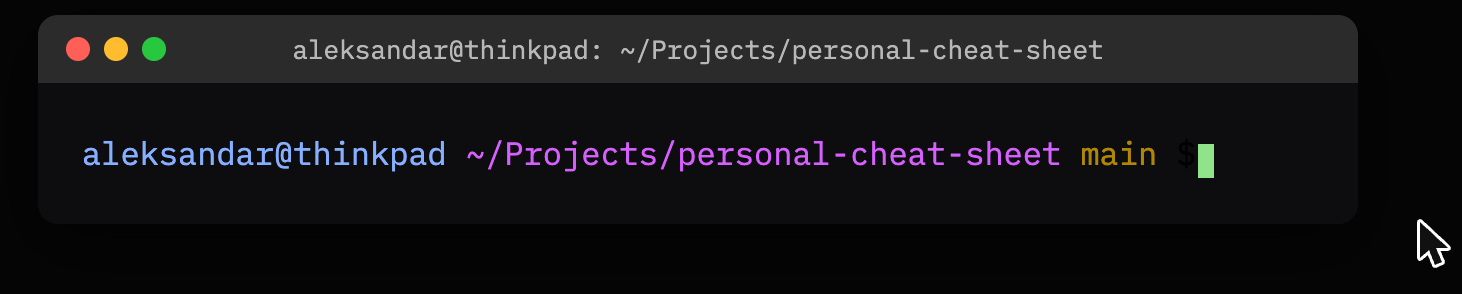
Shows the current branch name (if any) right after the path - no need to run git branch or git status to check what you’re on:
parse_git_branch() {
    git branch 2>/dev/null | sed -n '/^\*/s/^\* //p'
}
PS1='\[\e[38;5;111m\]\u@\h \[\e[38;5;171m\]\w\[\e[38;5;136m\] $(parse_git_branch)\[\e[0m\]\$ '
Outside a git repository, parse_git_branch prints nothing and that segment just disappears - no empty parentheses or stray characters left behind.
Two-line prompt, for long paths
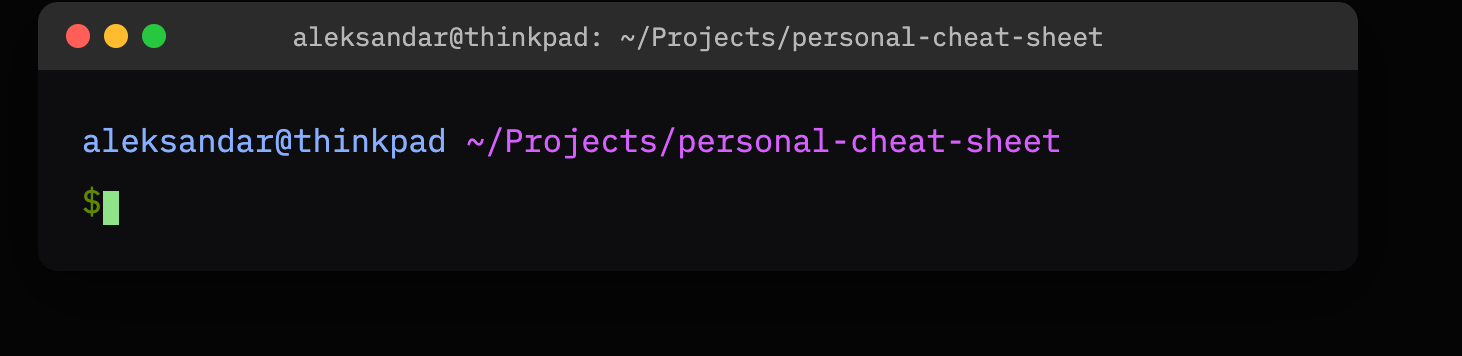
Puts the path on its own line and keeps the actual command line short and consistently positioned, regardless of how deep the current directory is:
PS1='\[\e[38;5;111m\]\u@\h \[\e[38;5;171m\]\w\[\e[0m\]\n\[\e[38;5;64m\]\$\[\e[0m\] '
\n is the only new piece here - everything after it starts on the next line, while the rest of the syntax (colors, \u/\h/\w) works identically to a single-line prompt.
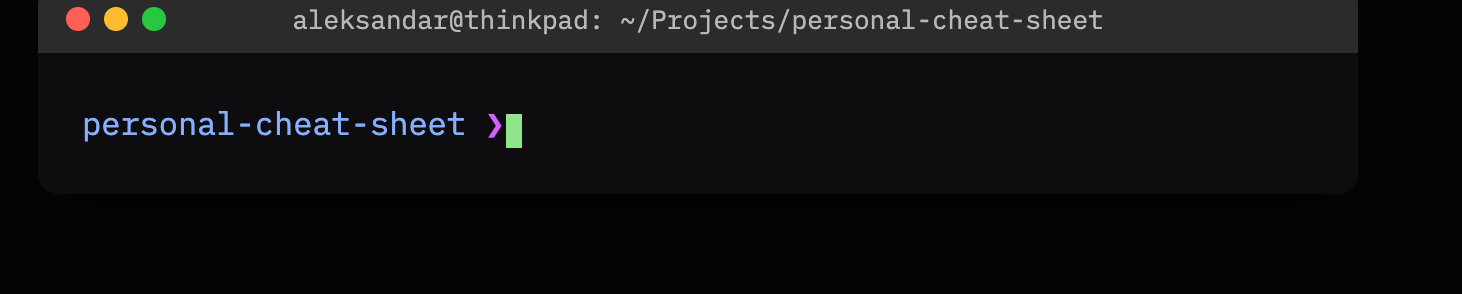
Minimalist, single accent color
For a quieter look - just the directory name and a colored prompt character, nothing else:
PS1='\[\e[38;5;111m\]\W \[\e[38;5;171m\]❯\[\e[0m\] '
Verification - confirm it actually works
source ~/.bashrc              # apply the change to the current shell
echo "test"                      # confirm the prompt redraws correctly after a command
cd / && cd -                       # confirm \w/\W updates correctly across directory changes
false; echo $?                       # for the exit-status prompt: confirms a non-zero code is produced to react to
Also open a brand-new terminal window/tab (not just sourced the existing one) to confirm the change survives a fresh shell start, not just the session you were actively editing in.
Safety notes
- Keep every
\[ \]pair matched - the most common symptom of a mismatched pair is the prompt and your typed text overlapping or redrawing wrong after a terminal resize orCtrl+Rhistory search, not an outright error. - Always end
PS1with a reset code (\[\e[0m\]) - without it, whatever color the prompt ended on keeps applying to every command you type and to that command’s own output. - Quote
PS1with double quotes ("...") only when it needs to expand a variable or$(...)command substitution (sections 4 and 6’s exit-status/git examples); use single quotes ('...') everywhere else so a stray$or backtick in a path doesn’t get accidentally interpreted. - A broken
PS1in~/.bashrconly affects new shells - your current terminal keeps working, so there’s no risk of locking yourself out the way a bad SSH or firewall change can. Worst case, revert from the~/.bashrc.bakmade in section 3. - Color numbers 0-15 render differently depending on the terminal emulator’s own theme (that’s what makes a “red” look different between apps) - 16-255 are fixed, so prefer those for a prompt that looks the same everywhere.